Showing posts with label windows. Show all posts

Sunday, July 10, 2011

AutoStart Manager - Autoruns.exe

Autoruns.exe is a startup manager utility, I personally use this tool to check whether there are malicious programs like viruses, trojans, worms, etc...in my windows OS, which usually attaches itself to the startup process.


startup managerAutoruns, which has the most comprehensive knowledge of auto-starting locations of any startup monitor, shows you what programs are configured to run during system bootup or login, and what extension load into various Windows processes, including Explorer and Internet Explorer. A "Hide Signed Microsoft Entries" option helps you to zoom in on third-party auto-starting images that have been added to your system.

You'll probably be surprised at how many executables are launched automatically!

Autoruns works on Windows XP and higher, including 64-bit Windows.

Read this related source at microsoft site: Autoruns for Windows v10.07

Tuesday, April 12, 2011

Windows Restore Virus (remove virus-restore)

Windows Restore Virus is usually stands for fake anti virus/anti-spyware programs that infects our cmputer with multiple spyware and malware issues. Windows Restore virus will automatically installs itself from ActiveX files that are downloaded to your system due to flaws in your internet security settings or out of date spyware removal tools will automatically windows restore virus will automatically update themselves when your computer is connected to the internet.

If your computer system/OS is infected with "Windows Restore Virus" the windows OS will continuously give messages about an infection on the PC via pop-ups, and notifications in the task menu. When the Windows Restore malware runs it will appear to be running scans and it will present a list of infections and when it attempts to remove the infections. That is just a scam to scare you into submitting their credit card information.

Windows Restore Virus - Manual Removal:

The first step in order to avoid any further infections caused by internet browsing redirects users will need to go to their Internet Options. To do it go to the start menu- control panel - Internet Options - choose the "Connections" tab - LAN Settings - uncheck the "Use a Proxy Server" Option, Then click "Ok" to save your settings. Next, restart your PC, and start with "safe mode". To access the safe mode, restart your computer and tap the F8 button. When correctly done a black screen will appear with options for starting up Windows. Choose Safe Mode and Windows will load safe mode, Next locate and delete the following files associated with Windows Restore:

Windows Vista an windows 7:
(Openyour windows explorer - Documents and Settings, and )

%AllUsersProfile%\~random
%AllUsersProfile%\~randomr
%AllUsersProfile%\random.dll
%AllUsersProfile%\random.exe
%UserProfile%\Desktop\Windows Restore.lnk
%UserProfile%\Start Menu\Programs\Windows Restore\
%UserProfile%\Start Menu\Programs\Windows Restore\Uninstall Windows Restore.lnk
%UserProfile%\Start Menu\Programs\Windows Restore\Windows Restore.lnk
%Temp%\internetexplorerupdate.exe

Windows XP:

%AllUsersProfile%\Application Data\~random
%AllUsersProfile%\Application Data\~randomr
%AllUsersProfile%\Application Data\random.dll
%AllUsersProfile%\Application Data\random.exe
%UserProfile%\Desktop\Windows Restore.lnk
%UserProfile%\Start Menu\Programs\Windows Restore\
%UserProfile%\Start Menu\Programs\Windows Restore\Uninstall Windows Restore.lnk
%UserProfile%\Start Menu\Programs\Windows Restore\Windows Restore.lnk
%Temp%\internetexplorerupdate.exe

Windows Restore Registry Entries that must be removed - (go to start- run - type regedit)

HKEY_CURRENT_USER\Software\Microsoft\Windows\CurrentVersion\Run “random.exe”
HKEY_CURRENT_USER\Software\Microsoft\Windows\CurrentVersion\Run “random
HKEY_CURRENT_USER\Software\Microsoft\Windows\CurrentVersion\Internet Settings “CertificateRevocation” = ’0′
HKEY_CURRENT_USER\Software\Microsoft\Windows\CurrentVersion\Internet Settings “WarnonBadCertRecving” = ’0′
HKEY_CURRENT_USER\Software\Microsoft\Windows\CurrentVersion\Policies\ActiveDesktop “NoChangingWallPaper” = ’1′
HKEY_CURRENT_USER\Software\Microsoft\Windows\CurrentVersion\Policies\Associations “LowRiskFileTypes” = ‘/{hq:/s`s:/ogn:/uyu:/dyd:/c`u:/bnl:/ble:/sdf:/lrh:/iul:/iulm:/fhg:/clq:/kqf:/`wh:/lqf:/lqdf:/lnw:/lq2:/l2t:/v`w:/rbs:’
HKEY_CURRENT_USER\Software\Microsoft\Windows\CurrentVersion\Policies\Attachments “SaveZoneInformation” = ’1′
HKEY_CURRENT_USER\Software\Microsoft\Windows\CurrentVersion\Policies\System “DisableTaskMgr” = ’1′
HKEY_LOCAL_MACHINE\SOFTWARE\Microsoft\Windows\CurrentVersion\policies\system “DisableTaskMgr” = ’1′
HKEY_CURRENT_USER\Software\Microsoft\Internet Explorer\Download “CheckExeSignatures” = ‘no’
HKEY_CURRENT_USER\Software\Microsoft\Internet Explorer\Main “Use FormSuggest” = ‘yes’
HKEY_CURRENT_USER\Software\Microsoft\Windows\CurrentVersion\Explorer\Advanced “Hidden” = ’0′
HKEY_CURRENT_USER\Software\Microsoft\Windows\CurrentVersion\Explorer\Advanced “ShowSuperHidden” = 0′

Note : the random (red color) can be any names, such as , hdfkdh , dkfhdhfk.exe jdfhjkdh.dll, Windows-Restore-Virus.exe , ...etc

Monday, October 4, 2010

Block Websties Without Software - In Windows OS

This summary is not available. Please click here to view the post.

Thursday, September 16, 2010

Send error report in win xp - how to disable it?

how to disable send error report in win xp
Fo all of you xp users , to disable the stupid feature in WinXP which tries to send an error report to microsoft every time a program crashes you will have to do this:

Follow these steps:

- Open Control Panel
- Click on Preformance and Maintenance.
- Click on System.
- Then click on the Advanced tab
- Click on the error reporting button on the bottom of the windows.
- Select Disable error reporting.
- Click OK
- Click OK

OR

- Right-Click on My Computer icon
- Then click on the Advanced tab
- Click on the error reporting button on the bottom of the windows.
- Select Disable error reporting.
- Click OK
- Click OK

Related :

Tuesday, September 14, 2010

Edit, Remove, and Add Right-Click Menu Items from Files and Folders

edit and add right click menus in windows files and foldersAs we know,some programs ask you if you want to option and others do not. Now granted, I probably said yes a couple of times, thinking how useful it would be to have that in my right-click menu, but there are still some I don’t even use.

There are many windows aplications that you install will add themselves to the right-click menu of your files and/or folders. And most times, you have no choice in the matter and, as a result, your right-click menu can get very long with added items you don't even use. The last person I was helping with this had a right context menu so long that the Rename option was no longer visible!

Fortunately, we can easily remove those unwanted menu items, if you know the registry values to edit. And it's not at all difficult once you know the keys responsible for the additions.

For Files, the secret lies in the "context menu handlers" under the shellex subkey for "All Files" which, in the registry, is nothing but an asterisk - like a dos wildcard, which means the values entered apply to all files. It is at the very top of the Root key, right here (go to:Start - Run - type : regedit) :

HKEY_CLASSES_ROOT\*\shellex\ContextMenuHandlers

Click the the + sign next to the ContextMenuHandlers key, to expand it.
Now you will see some of the programs that have added items to your right-click menu. Simply delete the program keys you don't want.
Yes, really simple, right. If deleting makes you uneasy, just export the key before deleting it. Or, instead of deleting the values, disable them. Simply double click the default value for the program on the right hand pane and rename the clsid value by placing a period or dash in front of it.

ie; - {b5eedee0-c06e-11cf-8c56-444553540000}

Then exit the registry, refresh, and right click a file to see if the item was removed from the menu.

Some programs - like WinZip or WinRar - will add several items to your right click menu but all of them will be removed by deleting or disabling their one context menu handler.

Note that the above key only applies to the right click menu of files.
To remove entries from the right click context menu of folders, you need to navigate to the Folder and Drive keys:

HKEY_CLASSES_ROOT\Folder\shellex\ContextMenuHandlers
HKEY_CLASSES_ROOT\Drive\shellex\ContextMenuHandlers

All you have to do is follow the same procedure as for Files - either disable or delete items you wish to remove.
Adding Items
Adding Items to the right click menu of Files and Folders is also fairly simple using the Registry. It just involves the creation of a few new keys for each item you wish to add. You edit the same keys used for removing items. Let's use Notepad as an example of an item you'd like to add to the right click menu of all your files or folders.

For folders, go to this key:
HKEY_CLASSES_ROOT\Folder
Click the + sign next to Folder and expand it so that the Shell key is visible. Right click the Shell key and choose New>Key and name the key Notepad or whatever else you'd prefer (whatever the key is named is what will appear in the right-click menu). Now right click the new key you made and create another key named Command. Then, in the right hand pane, double click "Default" and enter Notepad.exe as the value.
Exit the registry, refresh, and right click any folder. Notepad should now be on the context menu.

For files, go here again:

HKEY_CLASSES_ROOT\*
Expand the * key and see if a Shell key exists. If it does exist, follow the same procedure as for folders. If it does not exist, you'll have to create a new Shell first. Just right click the * key and choose New>Key and name it Shell. Then right click the Shell key and continue on the same way you did for adding items to the right click menu of folders.

Once done, Notepad should appear as an option in the right click menu of all your files.

Keyboard shortcuts list in windows

How to use yeyboard shortcuts in microsoft windowsOne of the common reasons for using the keyboard shortcuts is for efficiency in working with your computer, because sometimes using the mouse in the office tasks makes the job a long process.

If we have skills in the use of the keyboard function maximally, it will make our work of any kinds will be felt quickly done. Surely more speed in doing a job as an administration. Getting used to using your keyboard exclusively and leaving your mouse behind will make you much more efficient at performing any task on any Windows operating system.

The following are keyboard shortcuts in windows , and I use these keys every day on my jobs:

Windows key + R = Run menu

This is usually followed by:
cmd = Command Prompt
iexplore + "web address" = Internet Explorer
compmgmt.msc = Computer Management
dhcpmgmt.msc = DHCP Management
dnsmgmt.msc = DNS Management
services.msc = Services
eventvwr = Event Viewer
dsa.msc = Active Directory Users and Computers
dssite.msc = Active Directory Sites and Services
Windows key + E = Explorer

ALT + Tab = Switch between windows

ALT, Space, X = Maximize window

CTRL + Shift + Esc = Task Manager

Windows key + Break = System properties

Windows key + F = Search

Windows key + D = Hide/Display all windows

CTRL + C = copy

CTRL + X = cut

CTRL + V = paste

Also don't forget about the "Right-click" key next to the right Windows key on your keyboard. Using the arrows and that key can get just about anything done once you've opened up any program.


Keyboard Shortcuts

[Alt] and [Esc] Switch between running applications

[Alt] and letter Select menu item by underlined letter

[Ctrl] and [Esc] Open Program Menu

[Ctrl] and [F4] Close active document or group windows (does not work with some applications)

[Alt] and [F4] Quit active application or close current window

[Alt] and [-] Open Control menu for active document

Ctrl] Lft., Rt. arrow Move cursor forward or back one word

Ctrl] Up, Down arrow Move cursor forward or back one paragraph

[F1] Open Help for active application

Windows+M Minimize all open windows

Shift+Windows+M Undo minimize all open windows

Windows+F1 Open Windows Help

Windows+Tab Cycle through the Taskbar buttons

Windows+Break Open the System Properties dialog box


Undo. CTRL+Z
Delete. DELETE
Delete selected item permanently without placing the item in the Recycle Bin. SHIFT+DELETE
Copy selected item. CTRL while dragging an item
Create shortcut to selected item. CTRL+SHIFT while dragging an item
Rename selected item. F2
Move the insertion point to the beginning of the next word. CTRL+RIGHT ARROW
Move the insertion point to the beginning of the previous word. CTRL+LEFT ARROW
Move the insertion point to the beginning of the next paragraph. CTRL+DOWN ARROW
Move the insertion point to the beginning of the previous paragraph. CTRL+UP ARROW
Highlight a block of text. CTRL+SHIFT with any of the arrow keys
Select more than one item in a window or on the desktop, or select text within a document. SHIFT with any of the arrow keys
Select all. CTRL+A
Search for a file or folder. F3
View properties for the selected item. ALT+ENTER
Close the active item, or quit the active program. ALT+F4
Opens the shortcut menu for the active window. ALT+SPACEBAR
Close the active document in programs that allow you to have multiple documents open simultaneously. CTRL+F4
Switch between open items. ALT+TAB
Cycle through items in the order they were opened. ALT+ESC
Cycle through screen elements in a window or on the desktop. F6
Display the Address bar list in My Computer or Windows Explorer. F4
Display the shortcut menu for the selected item. SHIFT+F10
Display the System menu for the active window. ALT+SPACEBAR
Display the Start menu. CTRL+ESC
Display the corresponding menu. ALT+Underlined letter in a menu name
Carry out the corresponding command. Underlined letter in a command name on an open menu
Activate the menu bar in the active program. F10
Open the next menu to the right, or open a submenu. RIGHT ARROW
Open the next menu to the left, or close a submenu. LEFT ARROW
Refresh the active window. F5
View the folder one level up in My Computer or Windows Explorer. BACKSPACE
Cancel the current task. ESC
SHIFT when you insert a CD into the CD-ROM drive Prevent the CD from automatically playing.


Acessability shortcuts

Right SHIFT for eight seconds........ Switch FilterKeys on and off.

Left ALT +left SHIFT +PRINT SCREEN....... Switch High Contrast on and off.

Left ALT +left SHIFT +NUM LOCK....... Switch MouseKeys on and off.

SHIFT....... five times Switch StickyKeys on and off.

NUM LOCK...... for five seconds Switch ToggleKeys on and off.

Explorer shortcuts

END....... Display the bottom of the active window.

HOME....... Display the top of the active window.

NUM LOCK+ASTERISK....... on numeric keypad (*) Display all subfolders under the selected folder.

NUM LOCK+PLUS SIGN....... on numeric keypad (+) Display the contents of the selected folder.

NUM LOCK+MINUS SIGN....... on numeric keypad (-) Collapse the selected folder.

LEFT ARROW...... Collapse current selection if it's expanded, or select parent folder.

RIGHT ARROW....... Display current selection if it's collapsed, or select first subfolder.


Type the following commands in your Run Box (Windows Key + R) or Start Run

devmgmt.msc = Device Manager
msinfo32 = System Information
cleanmgr = Disk Cleanup
ntbackup = Backup or Restore Wizard (Windows Backup Utility)
mmc = Microsoft Management Console
excel = Microsoft Excel (If Installed)
msaccess = Microsoft Access (If Installed)
powerpnt = Microsoft PowerPoint (If Installed)
winword = Microsoft Word (If Installed)
frontpg = Microsoft FrontPage (If Installed)
notepad = Notepad
wordpad = WordPad
calc = Calculator
msmsgs = Windows Messenger
mspaint = Microsoft Paint
wmplayer = Windows Media Player
rstrui = System Restore
netscp6 = Netscape 6.x
netscp = Netscape 7.x
netscape = Netscape 4.x
waol = America Online
control = Opens the Control Panel
control printers = Opens the Printers Dialog


Internet browser

type in u're adress "google", then press [Right CTRL] and [Enter]
add www. and .com to word and go to it

Use these keyboard shortcuts for dialog boxes:

To Press
Move forward through tabs. CTRL+TAB
Move backward through tabs. CTRL+SHIFT+TAB
Move forward through options. TAB
Move backward through options. SHIFT+TAB
Carry out the corresponding command or select the corresponding option. ALT+Underlined letter
Carry out the command for the active option or button. ENTER
Select or clear the check box if the active option is a check box. SPACEBAR
Select a button if the active option is a group of option buttons. Arrow keys
Display Help. F1
Display the items in the active list. F4
Open a folder one level up if a folder is selected in the Save As or Open dialog box. BACKSPACE

If you have a Microsoft Natural Keyboard, or any other compatible keyboard that includes the Windows logo key and the Application key , you can use these keyboard shortcuts:

Display or hide the Start menu. WIN Key
Display the System Properties dialog box. WIN Key+BREAK
Show the desktop. WIN Key+D
Minimize all windows. WIN Key+M
Restores minimized windows. WIN Key+Shift+M
Open My Computer. WIN Key+E
Search for a file or folder. WIN Key+F
Search for computers. CTRL+WIN Key+F
Display Windows Help. WIN Key+F1
Lock your computer if you are connected to a network domain, or switch users if you are not connected to a network domain. WIN Key+ L
Open the Run dialog box. WIN Key+R
Open Utility Manager. WIN Key+U

Accessibility keyboard shortcuts:

Switch FilterKeys on and off. Right SHIFT for eight seconds
Switch High Contrast on and off. Left ALT+left SHIFT+PRINT SCREEN
Switch MouseKeys on and off. Left ALT +left SHIFT +NUM LOCK
Switch StickyKeys on and off. SHIFT five times
Switch ToggleKeys on and off. NUM LOCK for five seconds
Open Utility Manager. WIN Key+U

Shortcuts you can use with Windows Explorer:

Display the bottom of the active window. END
Display the top of the active window. HOME
Display all subfolders under the selected folder. NUM LOCK+ASTERISK on numeric keypad (*)
Display the contents of the selected folder. NUM LOCK+PLUS SIGN on numeric keypad (+)
Collapse the selected folder. NUM LOCK+MINUS SIGN on numeric keypad (-)
Collapse current selection if it's expanded, or select parent folder. LEFT ARROW
Display current selection if it's collapsed, or select first subfolder. RIGHT ARROW


source reference : technet.microsoft.com

Sunday, September 12, 2010

Why pc (computer) crash or error

pc error crashA PC being crash or error might be caused from many reasons , but the following are 10 of common reasons that often occurs..

Fatal error: the system has become unstable or is busy," it says. "Enter to return to Windows or press Control-Alt-Delete to restart your computer. If you do this you'll lose any unsaved information in all open applications."

You have just been struck by the Blue Screen of Death. Anyone who uses Microsoft Windows will be familiar with this. What can you do? More importantly, how can you prevent it happening?

1. Hardware conflict

The number one reason why Windows crashes is hardware conflict. Each hardware device communicates to other devices through an interrupt request channel [IRQ]. These are supposed to be unique for each device.

For example, a printer usually connects internally on IRQ 7. The keyboard usually uses IRQ 1 and the floppy disk drive IRQ 6. Each device will try to hog a single IRQ for itself.

If there are a lot of devices, or if they are not installed properly, two of them may end up sharing the same IRQ number. When the user tries to use both devices at the same time, a crash can happen. The way to check if your computer has a hardware conflict is through the following route: Start-Settings-Control Panel-System-Device Manager , Often if a device has a problem a yellow '!' appears next to its description in the Device Manager. Highlight Computer (in the Device Manager) and press Properties to see the IRQ numbers used by your computer. If the IRQ number appears twice, two devices may be using it.

Sometimes a device might share an IRQ with something described as 'IRQ holder for PCI steering'. This can be ignored. The best way to fix this problem is to remove the problem device and reinstall it.

Sometimes you may have to find more recent drivers on the internet to make the device function properly. A good resource is www.driverguide.com. If the device is a soundcard, or a modem, it can often be fixed by moving it to a different slot on the motherboard (be careful about opening your computer, as you may void the warranty).

When working inside a computer you should switch it off, unplug the mains lead and touch an unpainted metal surface to discharge any static electricity.

To be fair to Microsoft, the problem with IRQ numbers is not of its making. It is a legacy problem going back to the first PC designs using the IBM 8086 chip. Initially there were only eight IRQs. Today there are 16 IRQs in a PC. It is easy to run out of them. There are plans to increase the number of IRQs in future designs.

2. Bad Ram

Ram (random-access memory) problems might bring on the blue screen of death with a message saying Fatal Exception Error. A fatal error indicates a serious hardware problem. Sometimes it may mean a part is damaged and will need replacing.

But a fatal error caused by Ram might be caused by a mismatch of chips. For example, mixing 70-nanosecond (70ns) Ram with 60ns Ram will usually force the computer to run all the Ram at the slower speed. This will often crash the machine if the Ram is overworked.

One way around this problem is to enter the BIOS settings and increase the wait state of the Ram. This can make it more stable. Another way to troubleshoot a suspected Ram problem is to rearrange the Ram chips on the motherboard, or take some of them out. Then try to repeat the circumstances that caused the crash. When handling Ram try not to touch the gold connections, as they can be easily damaged.

Parity error messages also refer to Ram. Modern Ram chips are either parity (ECC) or non parity (non-ECC). It is best not to mix the two types, as this can be a cause of trouble.

EMM386 error messages refer to memory problems but may not be connected to bad Ram. This may be due to free memory problems often linked to old Dos-based programmes.

3. BIOS settings

Every motherboard is supplied with a range of chipset settings that are decided in the factory. A common way to access these settings is to press the F2 or delete button during the first few seconds of a boot-up.

Once inside the BIOS, great care should be taken. It is a good idea to write down on a piece of paper all the settings that appear on the screen. That way, if you change something and the computer becomes more unstable, you will know what settings to revert to.

A common BIOS error concerns the CAS latency. This refers to the Ram. Older EDO (extended data out) Ram has a CAS latency of 3. Newer SDRam has a CAS latency of 2. Setting the wrong figure can cause the Ram to lock up and freeze the computer's display.

Mcft Windows is better at allocating IRQ numbers than any BIOS. If possible set the IRQ numbers to Auto in the BIOS. This will allow Windows to allocate the IRQ numbers (make sure the BIOS setting for Plug and Play OS is switched to 'yes' to allow Windows to do this.).

4. Hard disk drives

After a few weeks, the information on a hard disk drive starts to become piecemeal or fragmented. It is a good idea to defragment the hard disk every week or so, to prevent the disk from causing a screen freeze. Go to : Start-Programs-Accessories-System Tools-Disk Defragmenter , This will start the procedure. You will be unable to write data to the hard drive (to save it) while the disk is defragmenting, so it is a good idea to schedule the procedure for a period of inactivity using the Task Scheduler. The Task Scheduler should be one of the small icons on the bottom right of the Windows opening page (the desktop).

Some lockups and screen freezes caused by hard disk problems can be solved by reducing the read-ahead optimisation. This can be adjusted by going to : Start-Settings-Control Panel-System Icon-Performance-File System-Hard Disk, Hard disks will slow down and crash if they are too full. Do some housekeeping on your hard drive every few months and free some space on it. Open the Windows folder on the C drive and find the Temporary Internet Files folder. Deleting the contents (not the folder) can free a lot of space.

Empty the Recycle Bin every week to free more space. Hard disk drives should be scanned every week for errors or bad sectors. Go to : Start-Programs-Accessories-System Tools-ScanDisk , Otherwise assign the Task Scheduler to perform this operation at night when the computer is not in use.

5 Fatal OE exceptions and VXD errors

Fatal OE exception errors and VXD errors are often caused by video card problems. These can often be resolved easily by reducing the resolution of the video display. Go to : Start-Settings-Control Panel-Display-Settings , Here you should slide the screen area bar to the left. Take a look at the colour settings on the left of that window. For most desktops, high colour 16-bit depth is adequate.

If the screen freezes or you experience system lockups it might be due to the video card. Make sure it does not have a hardware conflict. Go to : Start-Settings-Control Panel-System-Device Manager , Here, select the + beside Display Adapter. A line of text describing your video card should appear. Select it (make it blue) and press properties. Then select Resources and select each line in the window. Look for a message that says No Conflicts.

If you have video card hardware conflict, you will see it here. Be careful at this point and make a note of everything you do in case you make things worse.

The way to resolve a hardware conflict is to uncheck the Use Automatic Settings box and hit the Change Settings button. You are searching for a setting that will display a No Conflicts message.

Another useful way to resolve video problems is to go to : Start-Settings-Control Panel-System-Performance-Graphics, Here you should move the Hardware Acceleration slider to the left. As ever, the most common cause of problems relating to graphics cards is old or faulty drivers [a driver is a small piece of software used by a computer to communicate with a device]. Look up your video card's manufacturer on the internet and search for the most recent drivers for it.

6. Viruses

Often the first sign of a virus infection is instability. Some viruses erase the boot sector of a hard drive, making it impossible to start. This is why it is a good idea to create a Windows start-up disk. Go to : Start-Settings-Control Panel-Add/Remove Programs , Here, look for the Start Up Disk tab. Virus protection requires constant vigilance. A virus scanner requires a list of virus signatures in order to be able to identify viruses. These signatures are stored in a DAT file. DAT files should be updated weekly from the website of your antivirus software manufacturer.

An excellent antivirus programme is McAfee VirusScan by Network Associates ( www.nai.com). Another is Norton AntiVirus 2000, made by Symantec ( www.symantec.com).

7. Printers

The action of sending a document to print creates a bigger file, often called a postscript file.

Printers have only a small amount of memory, called a buffer. This can be easily overloaded. Printing a document also uses a considerable amount of CPU power. This will also slow down the computer's performance.

If the printer is trying to print unusual characters, these might not be recognised, and can crash the computer. Sometimes printers will not recover from a crash because of confusion in the buffer. A good way to clear the buffer is to unplug the printer for ten seconds. Booting up from a powerless state, also called a cold boot, will restore the printer's default settings and you may be able to carry on.

8. Software

A common cause of computer crash is faulty or badly-installed software. Often the problem can be cured by uninstalling the software and then reinstalling it. Use Norton Uninstall or Uninstall Shield to remove an application from your system properly. This will also remove references to the programme in the System Registry and leaves the way clear for a completely fresh copy.

The System Registry can be corrupted by old references to obsolete software that you thought was uninstalled. You can use Error Repair Professional Dwonload - Registry Cleaner to clean up the System Registry and remove obsolete entries. Read the instructions and use it carefully so you don't do permanent damage to the Registry. If the Registry is damaged you will have to reinstall your operating system.

Often a Windows problem can be resolved by entering Safe Mode. This can be done during start-up. When you see the message "Starting Windows" press F4. This should take you into Safe Mode.

Safe Mode loads a minimum of drivers. It allows you to find and fix problems that prevent Windows from loading properly.

Sometimes installing Windows is difficult because of unsuitable BIOS settings. If you keep getting SUWIN error messages (Windows setup) during the Windows installation, then try entering the BIOS and disabling the CPU internal cache. Try to disable the Level 2 (L2) cache if that doesn't work.

Remember to restore all the BIOS settings back to their former settings following installation.

9. Overheating

Central processing units (CPUs) are usually equipped with fans to keep them cool. If the fan fails or if the CPU gets old it may start to overheat and generate a particular kind of error called a kernel error. This is a common problem in chips that have been overclocked to operate at higher speeds than they are supposed to.

One remedy is to get a bigger better fan and install it on top of the CPU. Specialist cooling fans/heatsinks are available from www.computernerd.com or www.coolit.com

CPU problems can often be fixed by disabling the CPU internal cache in the BIOS. This will make the machine run more slowly, but it should also be more stable.

10. Power supply problems

With all the new construction going on around the country the steady supply of electricity has become disrupted. A power surge or spike can crash a computer as easily as a power cut.

If this has become a nuisance for you then consider buying a uninterrupted power supply [UPS]. This will give you a clean power supply when there is electricity, and it will give you a few minutes to perform a controlled shutdown in case of a power cut.

It is a good investment if your data are critical, because a power cut will cause any unsaved data to be lost.

Related:
  1. XP Quick Fix Plus Download - Error Repair Tool
  2. Host Process for Win32 Services Error , easy way to fix it
  3. O&O Defrag Professional Full Download

Thursday, August 19, 2010

How to reset BIOS password without opening the computer case (Clear CMOS)

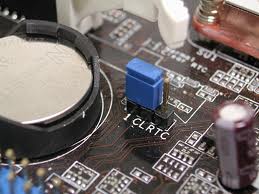
clear cmos bios password stepsFor those of you who like to tinkering with BIOS settings , and once you've forgotten the bios password. or just want to Clear the CMOS memory (ClearCMOS) for a purpose. So here's a tip to (clearing) reset bios password without opening the computer case.. The method is to reset the bios without touching the hardware.

Steps:

1 - Go to command prompt [start -> run -> type cmd]

2 - type debug -> enter
3 - Type o 70 2e -> enter
4 - Type o 71 ff -> enter
5 - Type q -> enter


Briefly
debug
o 70 2e
o 71 FF
q


Notice, it is all lowercase, spaces also include

After that restart your computer, it will remove the BIOS password, don't be surprised if the date and time back to the year of hardware manufactured . Clearing the CMOS will restore the default settings in all BIOS menus, but not restore the original BIOS code (will not revert back to the original bios version).

In the video below is the basic procedure to clearing CMOS by tweaking the hardware (open computer case)

Monday, August 2, 2010

Microsoft Patches Critical Crack Released

windows security patchYesterday, August-03-2010, Microsoft released an emergency patch for a "critical" crack in Windows OS, The patch that could let crackers or hackers take control of computers over the Internet.

Microsoft official said, "The vulnerability could allow remote code execution if the icon of a specially crafted shortcut is displayed"

"An attacker who successfully exploited this vulnerability could gain the same user rights as the local user."

Computer users commonly use shortcuts in the form of on-screen icons they can click to instantly awaken favoured applications.

The Windows flaw lets hackers booby-trap such icons with malicious software that could let them control machines from afar.

Microsoft routinely releases software patches the second Tuesday of each month, but resorts to making patches available "out of band" when it deems situations dangerous.

"Several families of malware have been attempting to attack this vulnerability," Microsoft Trustworthy Computing response manager Christopher Budd wrote in a blog post.

"We firmly believe that releasing the update out of band is the best thing to do to help protect our customers."

Some attacks have reportedly been directed at power plants and other vital infrastructure. People using computers running on any version of Windows software were urged to apply the update immediately.

To run the microsoft update, use this site, you must be running Microsoft Internet Explorer 5 or later.

To upgrade to the latest version of the browser, go to the Internet Explorer Downloads website.

If you prefer to use a different web browser, you can obtain updates from the Microsoft Download Center or you can stay up to date with the latest critical and security updates by using Automatic Updates. To turn on Automatic Updates:

1. Click Start, and then click Control Panel.
2. Depending on which Control Panel view you use, Classic or Category, do one of the following:
* Click System, and then click the Automatic Updates tab.
* Click Performance and Maintenance, click System, and then click the Automatic Updates tab.
3. Click the option that you want. Make sure Automatic Updates is not turned off.

Sunday, February 28, 2010

Microsoft Windows8 Development Project has been started

windows8 logo by free7After a fairly successful with the launch of Windows 7, Microsoft is now re-start a new project is the construction process of generation to Windows 8. In a Russian website, Wzor, said that the Redmond Company apparently is now busily engaged in the development of the Windows 8 and is now doing assembly reinstall the Windows. Wzor itself is a source of information who record accurately information from the development process is now being conducted by Microsoft Company.

However, the information about Windows 8, Windows 7’s successor has been either based on remarks slipped out by Microsoft officials or rumours.The site claims that Microsoft has started the engineering of Windwos 8. Microsoft CEO Steve Ballmer has reportedly suggested in the past that Windows 8 is currently under development, although the tech industry’s gravitation toward the cloud and the rise of browser-based operating systems such as Google Chrome could potentially have a sizable influence on how the next Windows version operates.

Thursday, February 11, 2010

Speed It Up to Accelerate the performance of your PC 300% faster - Download

Speed It Up is a free program designed to increase the speed of the computer (PC). The technique is performed by optimizing caches, memory, registry and settings in the computer automation to speed up PC performance. Speedit.up is the solution for computer owners who still lay in the increasing speed of computers. This program is made by the interface and how to use a very simple, so it can be used with ease.

Speed It Up Download freeSpeed It Up works by optimizing disk access and execute the data so that the computer work can be increased dramatically to 300%. Also Speed It Up also perform optimization on the memory. Speed It Up will remove the automatic recovery usually did on a computer program that spends a lot of memory capacity.

SpeedItUp Free will speed up any computer system running Windows XP or Windows Vista

Thursday, January 28, 2010

Windows Experience Pack for win 7, xp, and vista

Maybe you all already know about the Windows Experience Pack , WEP was created and optimized for Windows 7, but it can used on Win XP or Vista also.

With the Windows Experience Pack, you are able create an alter ego of yourself in a specific destination, like a beach, mountain, safari, or city . Alter ego is a second self (another character of yourself), a second personality or persona within a person, who is often oblivious to the persona's actions. It was coined in the early nineteenth century when dissociative identity disorder was first described by psychologists. A person with an alter ego is said to lead a double life.

When you create your alter-ego, you create a fully customized avatar for that destination that becomes a part of a Windows Live Messenger and Windows 7 theme for your PC. You’ll also be able to download a .jpg image of your avatar to share, print, or use as your icon on social networks.
alter ego of yourselfFor a specific destination you pick, the following Windows Live Messenger elements are created for you to use in Messenger for your alter-ego:

- 1 static Display Picture
- Up to 4 Dynamic Display Pictures
- A Wink
- 7 new Emoticons
- A new Messenger Scene

For Windows 7, you are given the choice between 3 desktop backgrounds for your destination and a screensaver featuring multiple photos from your destination.

The Windows Experience Pack was created and optimized for Windows 7, but it can be downloaded and used on PCs running Windows XP or Windows Vista too (although performance and features may vary).

Chek out and Download at : http://experience.windows.com

Office 2010 Hardware Requirements

Office 2010 Download by free7 and Hardware RequirementsHave you intend to use the Office 2010 suite Microsoft if it appears? Wait. Check if you have hardware that meets the requirements requested for Office 2010.

The system requirements for the Ms Office 2010 , that a hardware upgrade should not be necessary when you upgrade to Office 2010 from Microsoft Office 2003 or the 2007 Microsoft Office system. You might need to upgrade a supporting operating system. If you upgrade to Office 2010 from Microsoft Office 2000 or Microsoft Office XP, you must ensure that the hardware and operating system meet the minimum system requirements for the Office 2010 suites.


But as general rules, CPU and RAM requirements for Office 2010 are the same as for Office 2007, so if your computer meets the Office 2007 system requirements, you can run Office 2010. A graphics chipset will help boost the performance of certain features and disk footprint has increased (more on these points later), evaluate the computer prior to deployment to ensure it meets the minimum operating system requirements.

Minimum System Requirements:

  • Intel Pentium III processor, 500 MHz
  • 256 MB PC100 SDRAM
  • Windows XP Professional with Service Pack 3
  • If your current computer can run Office 2007, it can run Office 2010.
  • If you’re purchasing a new laptop or netbook, it can run Office 2010.
  • If you have a computer with a multi-core processor, it can run Office 2010 even faster.
  • If your computer is currently running Office 2003, it’s possible that it can run Office 2010 (check the requirements to be sure).
If you're running Windows Vista, Windows 7, or Windows Server 2008, you probably already have a machine that far exceeds the minimum requirements for Office 2010.

BTW Microsoft plans also will release Office 2010 in web version (online version) , and even more interesting is FREE, woow..we'll wait!

Try the Office 2010 in beta version here : www.microsoft.com/office/2010
Reference: askvg.com

Sunday, January 24, 2010

Controlling Another Computer Without Software - Windows Tips & Tricks

how to remote computer desktopIf you want to see or do remote desktop to another computer, the following simple tips and tricks to remote desktop (for windows OS) :

  • If you want to remote PC-1, it is necessary to PC-1 needs to be set. Create a username and password (in the Control Panel -> User Accounts)
  • Right Click on My Computer -> Properties -> select the Remote tab
  • Check, "Allow Users to Connect Remotely to This Computer"
  • Select, Select Remote Users -> Add -> type username -> click check name -> Ok.
  • Then to the computer that will be used to remote computer can be PC-2 or others, you can run Remote Desktop Connection application. You can see it in the Start -> All Programs -> Accessories -> Communications -> Remote Desktop Connections.
  • Enter computer IP address or computer name that will be remote, then select Connect.
  • Now, You can see the desktop of PC-1 that remote/controlled from PC-2.

Thursday, January 21, 2010

How to remove - uninstall Difficult aplications in Windows

If you often try free applications, you must have experienced that the application is still listed in the list of Add or Remove Programs when you've removed from the system. Now, instead of struggling to install other applications to clean it, wash it out through the Registry Editor.

It's easy follow these steps:
1. Open the Registry Editor window, then find the location "HKEY_LOCAL_MACHINE-SOFTWARE-Microsoft-Windows-CurrentVersion-Uninstall". This directory stores all the names in the application window Add or Remove Programs are stored in a directory.
2. Find the name of the application you want to delete. Once found, click the directory, then select "Delete" from the menu bar "Edit".

You can also other ways.
1. Right-click the directory.
2. after a context menu appears, select "Delete".
3. Before closing the Registry Editor window, press the "F5" on your keyboard to update the contents of the registry.
4. Without having to restart Windows, open the window of Add or Remove Programs, then look for the name of the original application that's difficult to remove. Surely now gone.

Another way to do that is use the software on my previous post the following:

Wednesday, January 20, 2010

Free download 51 useful software for windows and Sky Burial Video

To complete my previous post on "My recommended for the best free software downloads" The following are: 51 free software downloads for windows


The Tibetan Sky Burial video above, is just to sharing a unique experience from the content contained in the video, to enrich the insights and knowledge.
Learn more here: Sadistic of Tibetan Sky Burial Procession

Sunday, November 8, 2009

Fix MSE, a utility to repair microsoft security essentials antivirus

The presence of free anti-virus Microsoft Security Essentials (MSE) is a fresh breeze for computer users around the world, but instead is bad news for developers of commercial anti-virus.
download fix mse utility free antivirusAccording to independent security researchers. AV-comparatives in comparative testing some anti-virus, AV-comparatives stating that Microsoft Security Essentials is an anti-virus included in the category has a good ability

However there are some reports from users that, the crash occurred at the Microsoft Security Essentials after the custom settings. If your MSE antivirus has been,damaged, crash or error, then you can try a tool called fix MSE V1.0.

By using MSE fix, Then all Microsoft Security Essentials settings will be restored to the default setting. And your antivirus expected to be back working normally. how to repair Microsoft Security Essentials With Fix MSE is quite easy, because this tool is a portable utility. just click the "Fix MSE" , and your MSE will be normal again.

Saturday, November 7, 2009

Free upgrade windows vista to win 7 for notebook users

notebook and sexy girlMicrosoft announces free upgrade from a computer installed Windows Vista Home Premium edition or higher to the comparable of Windows 7 edition

The free upgrade program of windows vista to windows 7 is only for those who bought a notebook between June 26, 2009 to January 31, 2010.


Upgrade specification

Windows Vista Home Premium upgrade to Windows 7 Home Premium
Windows Vista Business upgrade to Windows 7 Professional
Windows Vista Ultimate upgrade to Windows 7 Ultimate

"The upgrade process will be done via the internet/online"

The following are all brands of notebook that can be upgraded to windows 7 ,and the website links to upgrade, or to make a purchase order.

Friday, October 23, 2009

Maximizing internet explorer performance with Fix IE Utility v 1.0

download Fix IE Utility v 1.0 freeNow, to you all internet explorer users,there is a good news, which is a tool that can maximize the work ability of IE browser.

While visiting various sites on the Internet, sometimes there are sites that contains viruses, malware or spyware and can make your Internet Explorer to be error or crash. So the IE performance will be no maximum. For this problem, the Windows product lovers which joined in the windows club has made a utility that named Fix IE Utility v 1.0. (freeware)

The Fix IE Utility v 1.0, serves to repair your internet explorer browser by re-register around 89 dll files and OCX files, which are required for the smooth running of Internet Explorer.

This utility has been tested on IE 7 and IE 8, on Windows Vista & Windows 7. Before running the Fix IE Utility , all browsers must be closed.


DLL files is ?
DLL (dynamic link library) is a feature of the Microsoft Windows family of operating systems and OS/2 that allows executable routines to be stored separately as files with DLL extensions and to be loaded only when needed by a program. A dynamic-link library has several advantages.

A DLL file is a collection of small programs, which can be called upon when needed by the executable program (EXE) that is running
Dynamic Link Library (DLL) files are an essential part of the Windows operating system. Although they are ubiquitous, most PC users neither know nor care what these files do. Nonetheless, a little understanding of the role that DLL files play can make the computer a little less of a mystery box. Only programmers and computer technicians need to know any of the gory details of the structure and function of a DLL, but these files are so important that all of us should know a few simple facts about them. Here is some information for the non-technical PC user.

Ocx files is ?
OCX, A file with OCX extension is an Object Linking and Embedding (OLE) custom control, a special-purpose program that can be created for use by applications running on Microsoft's Windows systems. OCXs provide such functions as handling scroll bar movement and window resizing.

The OCX format can become infected and should be carefully scanned if someone sends you a file with this extension.

OCX and DLL
An "ocx file" is a "dll file" with one or more active x controls in it. a dll is just a block of code that can be loaded into memory when needed and discarded when not in use.

Tuesday, October 6, 2009

Microsoft Security Essentials Download

Microsoft Security Essentials (MSE) is an anti virus that was released by microsoft recently. The good news is Microsoft Security Essentials can be downloaded for free. MSE of course is intended only for those users of Microsoft Windows operating systems.

Microsoft Security Essentials is available for Windows XP, Vista and Windows 7 or next windows 8 (32 or 64 bit)

This anti-virus provides updates every day to stay protected from the latest threats from viruses, spyware and other malicious programs. but there is no firewall, back-up capabilities or spam filters, but MSE still provides protection from viruses, Trojans, spyware and rootkits.

Microsoft has said it isn't out to steal business from companies like McAfee Inc. and Symantec Corp., which make popular antivirus programs with more features. Microsoft says it hopes the free program will appeal to people who don't already run antivirus software.

Other commercial security software suppliers claim they are not concerned by Microsoft's move because free software does not have the support that the more important business market requires.